What MiniMax H3 Image is good at.
MiniMax announced H3 Image on November 11, 2026. The maker describes generation from text, reference-based generation and editing, and highlights prompt adherence. Runware also highlights counts, positions, layouts and dense text. Results still need review: the examples below show both useful details and missed instructions.
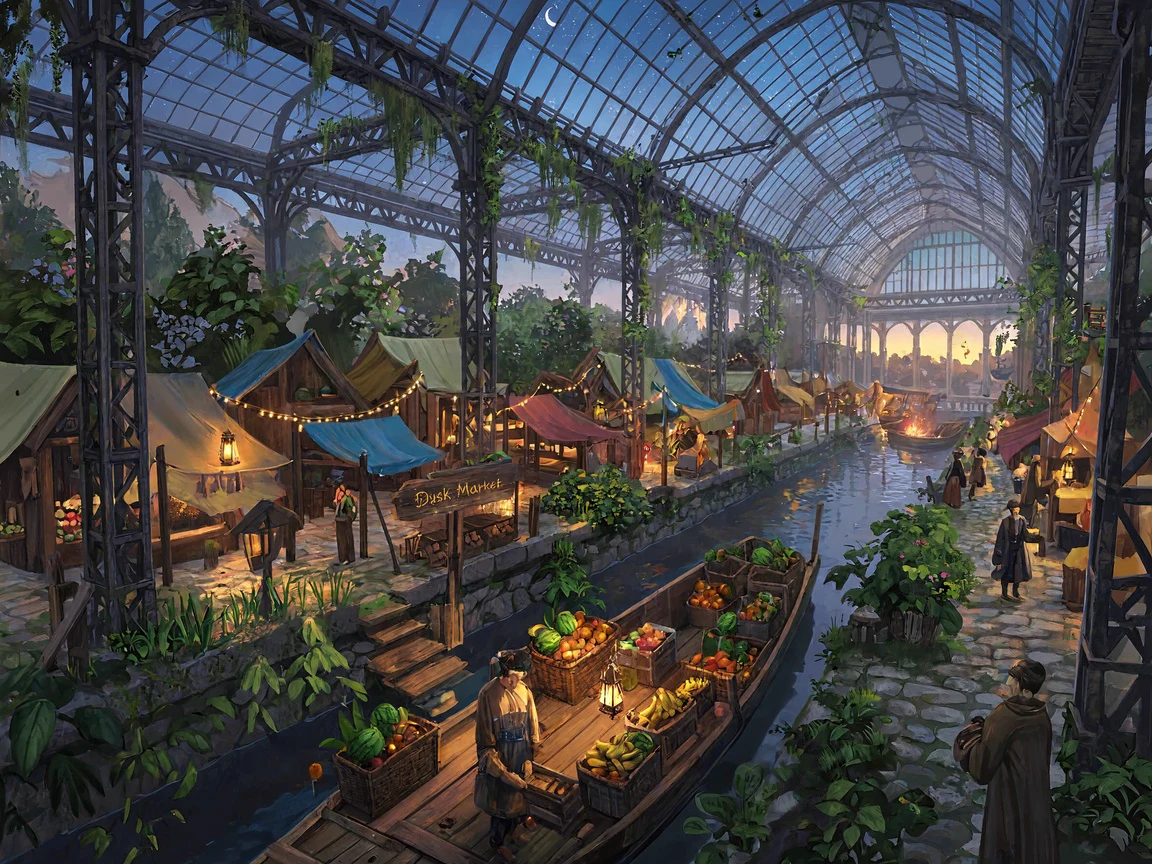
A scene can begin with a setting and visual style, as in the floating market painting. For an infographic, quote the wording and describe the order of the steps. For product images, name the objects and their relative positions.
Geneso offers 1K, 2K and 4K sizes. MiniMax says the model can produce a 4096 x 4096 image in under 10 seconds; that is the maker’s claim, not a guarantee of generation time on Geneso.
How to use MiniMax H3 Image on Geneso.
Open the image generator. The buttons on this page select MiniMax H3 Image. Enter a prompt, choose the format and check the estimate before generating.
- 01
Write the brief
Describe the subject and setting, then add the style, lighting or layout. Quote any text you want to see in the image.
- 02
Choose size and references
Select an available size for your use. Geneso supports up to 16 reference images for this model; say what each reference should contribute.
- 03
Inspect the result
Review the credit estimate, generate and check the image. Look closely at text, counts and positions before using it; revise the prompt if needed.
Prompt tips and examples.
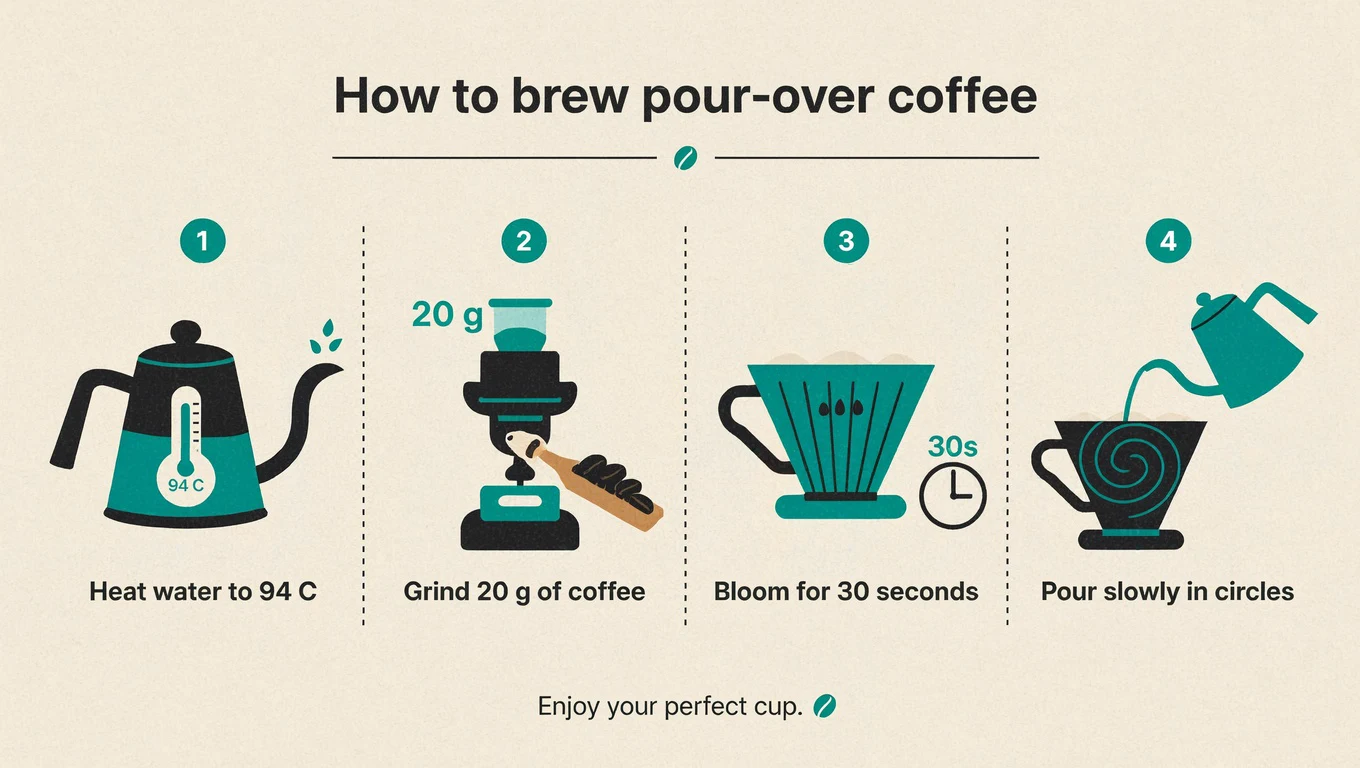
The floating market prompt combines boats, lanterns, vines and twilight inside a greenhouse. The coffee infographic specifies four numbered captions. All four requested captions appear, but the image adds an unrequested line at the bottom.
The fruit prompt tests both count and placement. The take shows five red apples and one green pear at the right end, but the two lemons are in the row between the third and fourth apple, not behind the third. Use the examples as individual results, not promises that every instruction will be followed.
- Take
- 02
- Size
- 1360 × 768
- Aspect
- 16:9
- credits
- 52
A pour-over coffee infographic
All four requested captions appear, but the image adds the unrequested line "Enjoy your perfect cup." at the bottom.
Generated
Original prompt
A clean flat-design infographic poster titled "How to brew pour-over coffee" with four numbered steps in a horizontal row, each with a simple icon and a short caption: "1 Heat water to 94 C", "2 Grind 20 g of coffee", "3 Bloom for 30 seconds", "4 Pour slowly in circles". Teal, cream and charcoal palette, legible sans-serif text, generous spacing.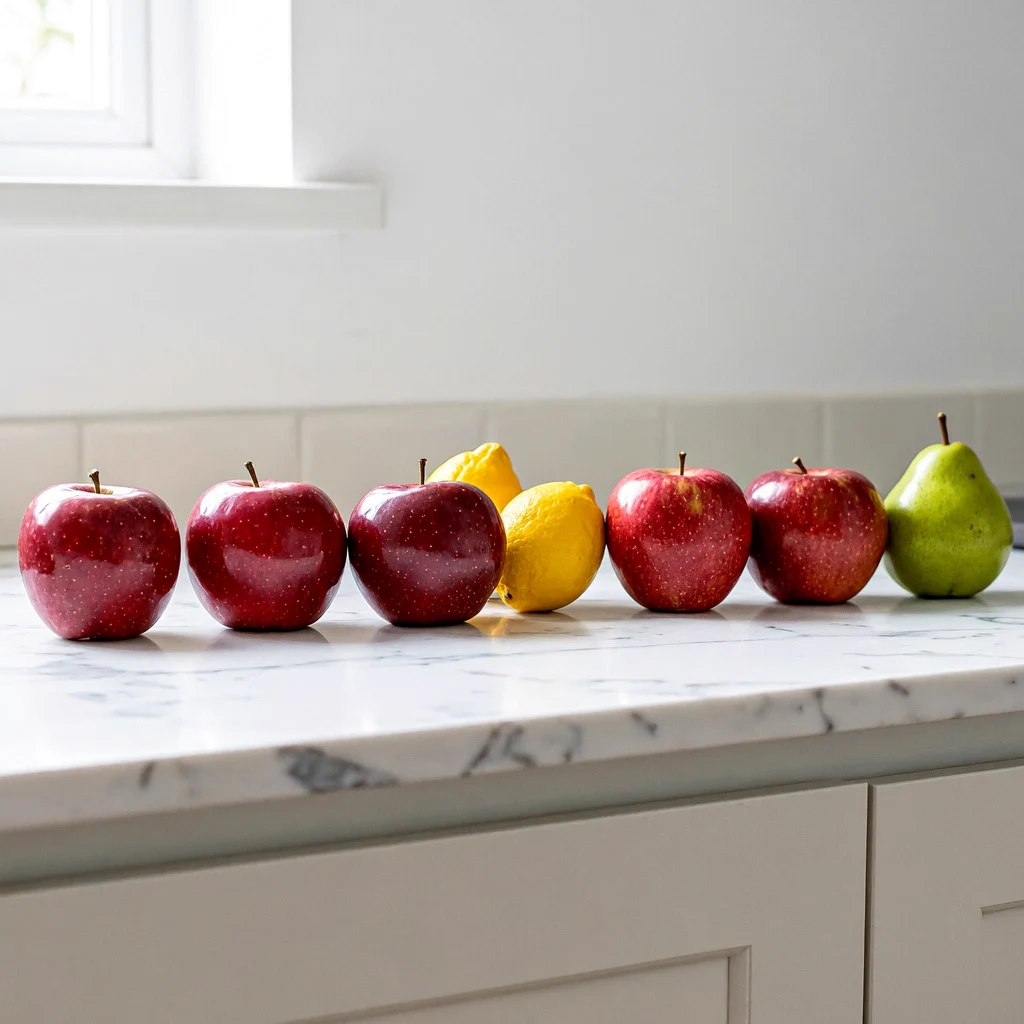
- Take
- 03
- Size
- 1024 × 1024
- Aspect
- 1:1
- credits
- 52
Counting and positioning fruit
The image shows five red apples and one green pear at the right end, but the two lemons sit in the row between the third and fourth apple instead of behind the third.
Generated
Original prompt
Exactly five red apples in a single straight row on a white kitchen counter, with exactly one green pear placed to the right of the row and two lemons behind the third apple. Bright soft daylight, clean product photography.Compare image models.
The live table compares largest size, aspect ratio count, default credits and plan access. Default costs use each model’s own settings. To compare visual results, try a similar brief and note the selected sizes.
For moving images, see the separate MiniMax H3 video page. This page covers the image model.
Credits and pricing on Geneso.
A 1024 x 1024 image costs 52 credits. A 4096 x 4096 image costs 130 credits. References can affect the estimate, so check it in the generator before submitting.
MiniMax H3 Image is available on the Free plan. The Free plan includes 300 welcome credits and 50 daily credits. See pricing for current plan details.
Use Geneso in AI apps.
Claude
ChatGPT
Other MCP apps
Frequently asked questions.
Who made MiniMax H3 Image?
MiniMax made this open-weight image model and announced it in November 2026. Geneso provides access through Runware.
How do I use it on Geneso?
Open the generator, describe your image, select a size and review the credit estimate. The buttons on this page select the model.
Can I use reference images?
Yes. Geneso supports up to 16 reference images with this model. Explain what each should contribute and review the result.
What sizes can I choose?
Geneso offers 1K, 2K and 4K sizes in several proportions. Check the generator for the current choices.
How much does an image cost?
A 1024 x 1024 image costs 52 credits. Your estimate can change with the selected settings and references.
Is this the video model?
No. This is the image model. The separate MiniMax H3 page covers video.
Sources.
- MiniMax: H3-Image announcement
Accessed
- Runware: MiniMax H3 Image
Accessed