Before you start.
Use Claude on the web and a Geneso account. You can create one while connecting. Claude Free allows one custom connector.
Set up Geneso.
- 01
Open Plugins
In the sidebar, select Plugins, then Add and Add custom connector.
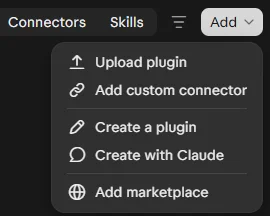
Open full size: Open Plugins - 02
Add the URL
Enter Geneso as the name and paste the server URL. Select Continue.
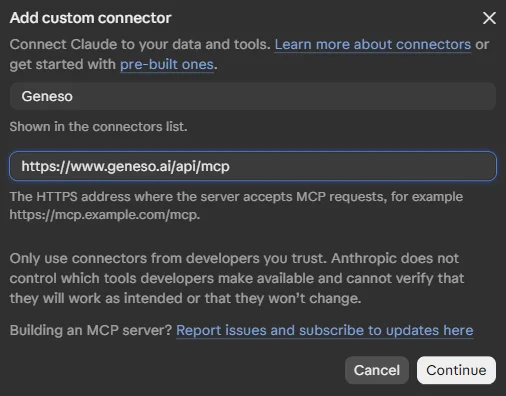
Open full size: Add the URL - 03
Choose sign in
Claude selects No sign-in because anyone can list models. Choose Sign in now, keep Use Claude’s published identity and select Add.
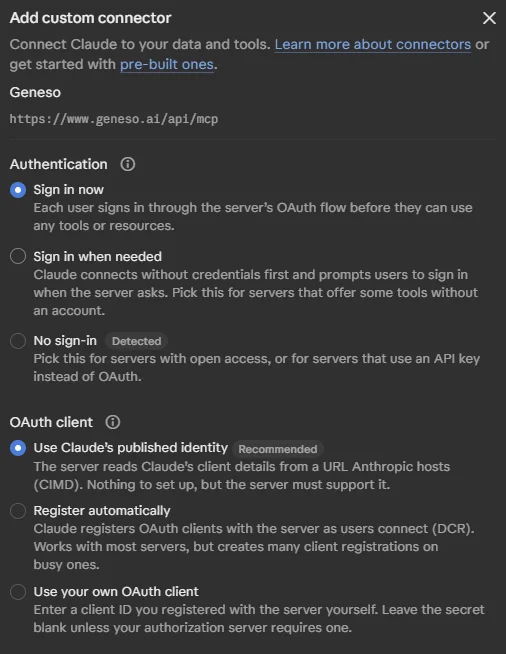
Open full size: Choose sign in - 04
Sign in and allow access
Sign in to Geneso, review the permissions and select Allow access.
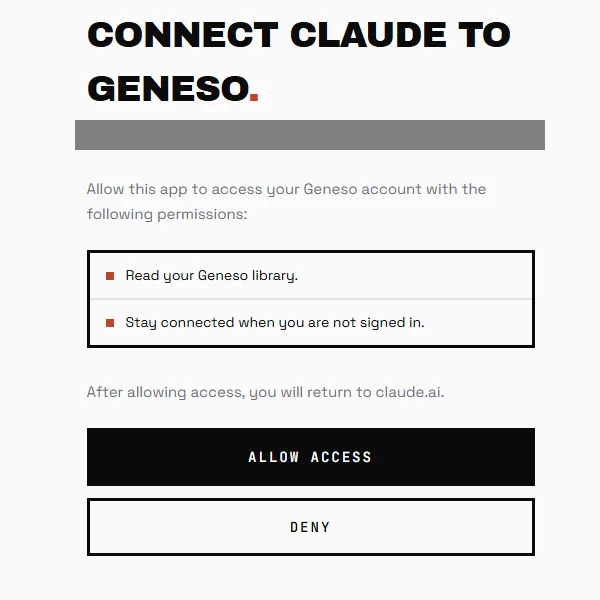
Open full size: Sign in and allow access - 05
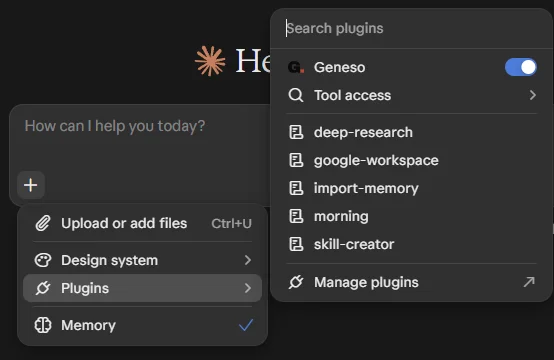
Ask in a chat
In a chat, open + and Plugins to check Geneso is on. Ask for an image. Claude asks before each tool use: choose Allow once or Always allow.
Open full size: Ask in a chat - 06
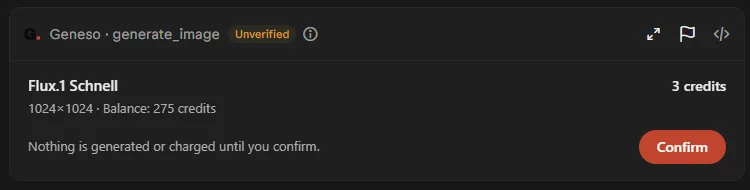
Review and confirm
Review the model, size, balance and price in the Geneso panel before pressing Confirm.
Open full size: Review and confirm - 07
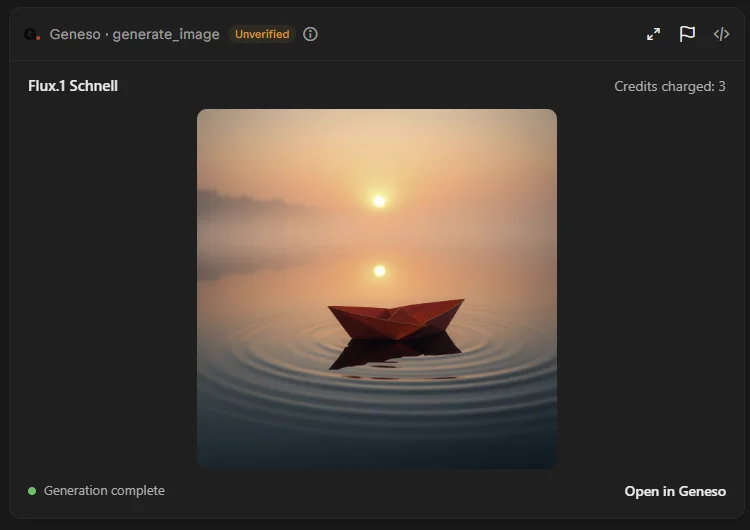
See the result
When it finishes, the panel shows the result and credits charged. Select Open in Geneso to open it.
Open full size: See the result
Generate with confirmation.
In apps that show the Geneso panel, the panel first shows the model, size, balance and exact price. Confirm submits the quote; if it is accepted, the generation starts at the quoted price. If the generation fails, those credits are refunded.
If you use an image as a reference, edit or animation input, check the box confirming you have permission to use it. Confirm stays disabled until you do.
What you can do.
You can list models and base prices without signing in. With your account you can check your balance, get exact quotes and browse your library and generations. Results are saved in your Geneso library.
Available models depend on your plan. You can create images and video or animate an image. Geneso templates and tools are not available through MCP.
Claude labels the connector tools Unverified. Connecting asks once for permission to read your profile and credit balance, use credits to generate images and videos, read your library and stay connected when you are not signed in.
Credits and plans.
A new account receives 300 welcome credits. On the Free plan you can also claim 50 free credits each day on the Credits page. See the plans and pricing.
Frequently asked questions.
When are credits charged?
Confirm submits the quote; if it is accepted, the generation starts at the quoted price. If the generation fails, those credits are refunded.
Can I create an account while connecting?
Yes. You can sign in or create an account with Google or email.
What does Geneso receive?
Geneso receives what the app sends to its tools, such as the prompt, settings and attached images. See the privacy policy.
Can I use templates and tools?
They are not available through MCP. You can create images and video with models available to your plan.
Sources.
- Get started with custom connectors
Accessed
- Remote MCP connectors
Accessed