Before you start.
You need an app that supports remote MCP servers over HTTPS using the current MCP protocol (2026-07-28). Older protocol versions are not accepted. Sign-in uses OAuth with dynamic client registration (DCR), which the app must support. You also need a Geneso account; you can create one while connecting.
Set up Geneso.
- 01
Add the URL
Add the server URL in your app’s MCP settings. The app handles sign-in through OAuth and dynamic client registration (DCR).
- 02
Sign in and authorize
Sign in with Google or email and review the permissions. The consent screen shows where Geneso will send you back after you allow access. If it shows a web address, check that it belongs to the app you are connecting. “An app on this device” does not name the app, so continue only if you started the connection from an app you trust.
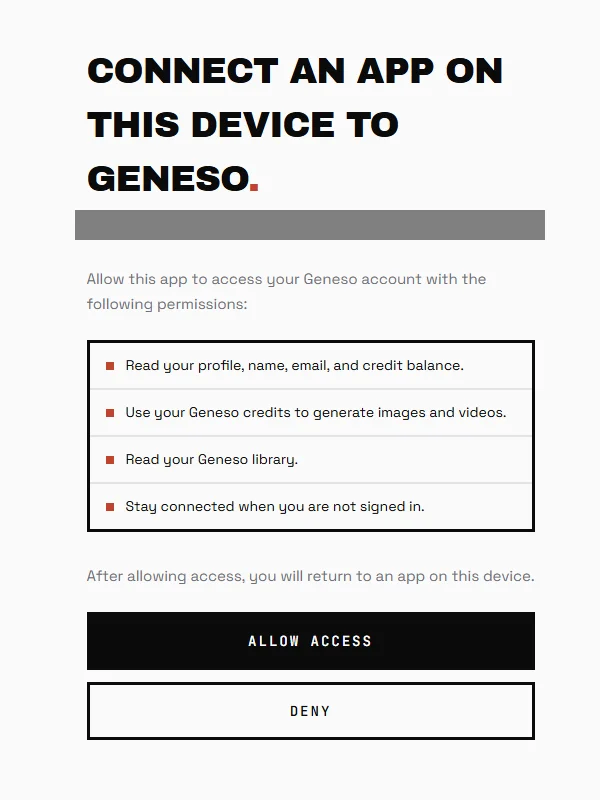
Open full size: Sign in and authorize
Generate with confirmation.
In apps that show the Geneso panel, the panel first shows the model, size, balance and exact price. Confirm submits the quote; if it is accepted, the generation starts at the quoted price. If the generation fails, those credits are refunded.
If you use an image as a reference, edit or animation input, check the box confirming you have permission to use it. Confirm stays disabled until you do.
What you can do.
You can list models and base prices without signing in. With your account you can check your balance, get exact quotes and browse your library and generations. Results are saved in your Geneso library.
Available models depend on your plan. You can create images and video or animate an image. Geneso templates and tools are not available through MCP.
To start a paid generation, an app must support MCP Apps so it can show the Geneso panel, where you press Confirm. Claude and ChatGPT do.
If your app cannot show the panel, it can browse models, balance, quotes and your library, but a generation request returns a message that the panel is required. You can generate on geneso.ai.
Credits and plans.
A new account receives 300 welcome credits. On the Free plan you can also claim 50 free credits each day on the Credits page. See the plans and pricing.
Frequently asked questions.
When are credits charged?
Confirm submits the quote; if it is accepted, the generation starts at the quoted price. If the generation fails, those credits are refunded.
Can I create an account while connecting?
Yes. You can sign in or create an account with Google or email.
What does Geneso receive?
Geneso receives what the app sends to its tools, such as the prompt, settings and attached images. See the privacy policy.
Can I use templates and tools?
They are not available through MCP. You can create images and video with models available to your plan.
Sources.
- MCP authorization
Accessed