What FLUX 3 is good at.
FLUX 3 comes from Black Forest Labs. The wider FLUX 3 foundation model spans images, video, audio and action; FLUX 3 Image is the image generation and editing model. FLUX 3 Video is a separate video model on Geneso. This page focuses on still images, including what you can make from a prompt and how references can guide a composition.
Black Forest Labs highlights prompt following, composition, text in multiple languages and a wide range of visual styles. It also describes image editing and combining references into one composition. These are useful starting points, not guarantees that every word or object will be correct. Read the image as carefully as you would a draft from any other creative process.
A prompt can ask for a photograph, an illustration or a poster. State the subject first, then add the setting, the desired light and the relationship between important objects. If the image contains lettering, quote the exact words and specify their placement. Check the result at the size where it will be used, especially when the text is small.
The maker also highlights native 2K and 4K output for fine detail. On Geneso, choose from landscape, square, portrait and wider proportions. The live strip shows the current largest size. Choose a format for the destination rather than treating a larger image as a substitute for a clear prompt.
How to use FLUX 3 on Geneso.
Open the image generator. The buttons on this page select FLUX 3 Image for you. You can write a prompt in English or Spanish, and you do not need a separate Black Forest Labs account.
- 01
Describe the image
Give the model a subject and a setting, then name the visual treatment. For a product image, describe its material and lighting; for a poster, give the headline and where it belongs. A short, ordered brief makes it easier to decide what to change after the first result.
- 02
Choose the format and references
Select the size and aspect ratio for your intended use. You can add up to ten reference images when the composition needs visual guidance. Describe what the references should contribute instead of assuming the model will know which details matter most.
- 03
Check the estimate and review
Review the credit estimate before generating. Inspect the whole image, including edges, small text and object placement. When something is wrong, adjust the relevant instruction and try again. Keep the original prompt if you want a useful comparison between attempts.
Prompt tips and examples.
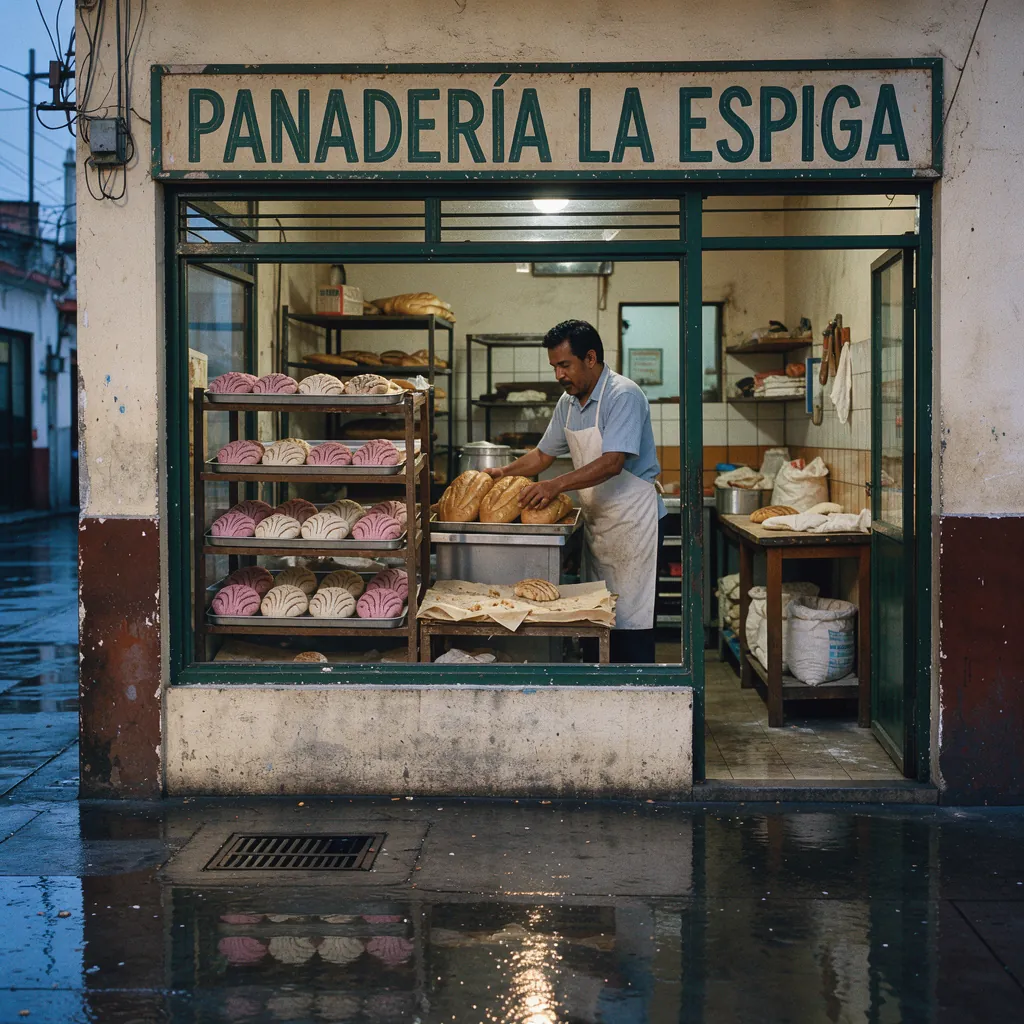
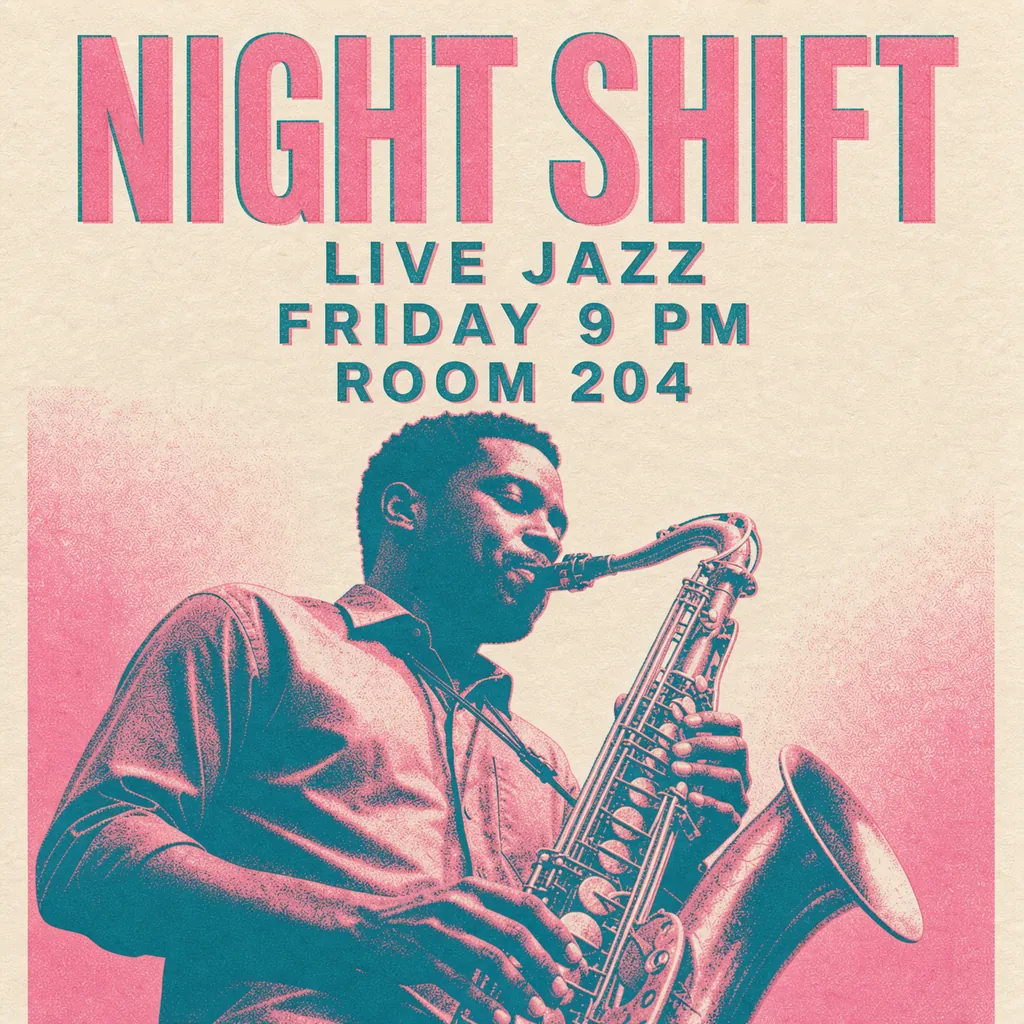
The bakery hero asks for a Spanish sign, warm interior light and a blue-hour street. The poster specifies four separate lines and a two-color print treatment. In these recorded takes, the requested poster lines appeared, while the bakery sign includes the accented word. The images are examples of individual runs, not a promise that lettering will always be exact.
The desk prompt names a position for each object. In that take the compass, coffee, caramels and glasses landed in their requested corners. The fox prompt instead emphasizes watercolor, paper texture and a cozy scene. Open each original prompt and compare how a precise layout differs from a style-led description.
To adapt an example, change the subject while keeping the structure that matters to you. If a sign matters more than the background, make its wording and location explicit. If layout matters more than text, list the objects and their relative positions. Generate a draft, inspect it, and make the next change deliberate.
- Take
- 02
- Size
- 1024 × 1024
- Aspect
- 1:1
- credits
- 80
A risograph poster
Generated
Original prompt
Two-colour risograph gig poster printed in fluorescent pink and teal on cream paper. A large condensed headline reads "NIGHT SHIFT". Below it, smaller lines read "LIVE JAZZ", "FRIDAY 9 PM" and "ROOM 204". A saxophone player drawn in halftone dots fills the lower half. Slight misregistration and paper grain, flat artwork, edge to edge, no other text.
- Take
- 03
- Size
- 1024 × 1024
- Aspect
- 1:1
- credits
- 80
Objects in their places
Generated
Original prompt
Overhead flat lay on a dark walnut desk. An open notebook with a pencil sketch of a bicycle sits in the center. A brass compass is at the top left, a cup of black coffee at the top right, three caramels in gold wrappers at the bottom right and round reading glasses at the bottom left. Soft window light from the left, editorial product photography, no text.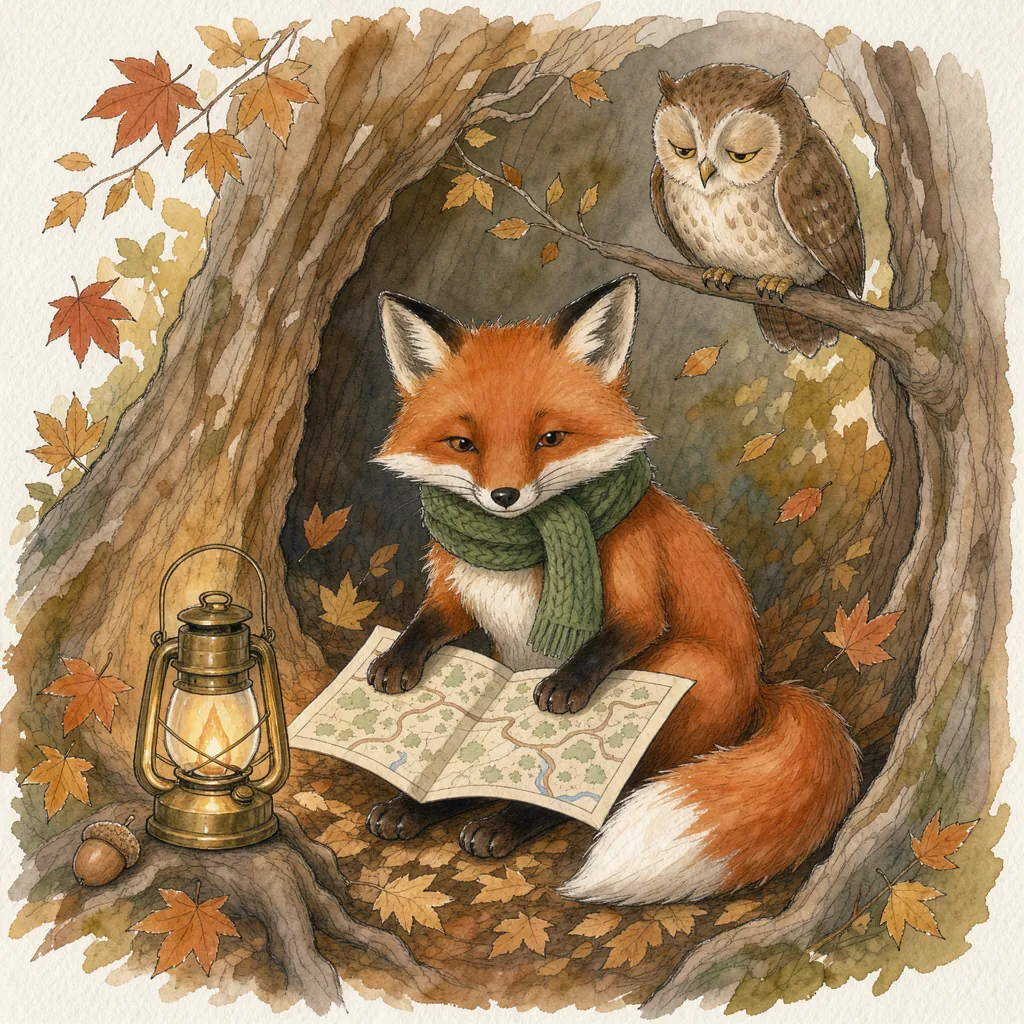
- Take
- 04
- Size
- 1024 × 1024
- Aspect
- 1:1
- credits
- 80
A watercolor story
Generated
Original prompt
Watercolor and ink illustration for a children's book: a red fox in a green scarf reads a map by lantern light inside a hollow tree, a sleepy owl watching from a branch above. Loose washes, visible paper texture, warm autumn palette, gentle and cozy, no text.FLUX 3 vs Nano Banana 2.1 and Ideogram 4.0.
The live table compares the largest size, number of aspect ratios, default credits per image and plan access for each model. These are catalog settings, not a ranking of visual quality. The default credit figures describe each model’s own default request, so check the generator estimate when you change settings.
For text-oriented designs, see our Ideogram 4.0 page. You can also explore GPT Image 2.5 or compare platforms in Geneso vs Krea. Keep the same brief where possible, note the settings, and compare the actual images rather than relying on a model name alone.
Credits and pricing on Geneso.
An image at the default settings costs 80 credits. FLUX 3 Image is available on the Free plan. The estimate in the generator reflects your selected settings before you generate, so review it each time you change the format.
The Free plan includes 300 welcome credits and 50 daily credits. Free accounts use the smallest size and Low quality. A paid plan or any credit purchase unlocks larger sizes and higher quality. Check your balance and the estimate to see whether your chosen request is covered.
Starter costs $3.99 per month. See pricing for current plans and details. The Geneso catalog includes 63 image models, so you can explore alternatives without changing the way you open the generator.
Frequently asked questions.
What is FLUX 3 and who made it?
FLUX 3 is a multimodal foundation model from Black Forest Labs. FLUX 3 Image is its model for generating and editing images; FLUX 3 Video is separate. Geneso provides access through Runware.
Where can I use FLUX 3 online?
Use FLUX 3 Image in the Geneso generator. The page buttons preselect it. Enter a prompt, choose your settings and check the estimate. No separate Black Forest Labs account is needed.
Can I try FLUX AI free on Geneso?
FLUX 3 Image is available on the Free plan. The Free plan includes 300 welcome credits and 50 daily credits. The default image costs 80 credits; check your balance before generating.
What is it good at compared with its peers?
Black Forest Labs highlights composition, prompt following, multilingual text and editing with references. Compare the live size, aspect ratio, default credit and access rows with Nano Banana 2.1 and Ideogram 4.0, then test the same brief to judge the results for yourself.
What sizes does FLUX 3 support on Geneso?
Geneso offers square, landscape, portrait and wide formats. The live strip above shows the current largest size and aspect ratio count; the generator lists the available sizes. Free accounts use the smallest size; a paid plan or any credit purchase unlocks larger sizes.
Sources.
- Black Forest Labs: FLUX 3 announcement
Accessed
- Black Forest Labs: FLUX 3 Image
Accessed
- Runware: FLUX 3 Image
Accessed